Why Screen-Test a New Device Before You Buy
On September 1, 2026, we took Screen Test Pro into an Apple Store in Hong Kong and ran it on as many display devices as time allowed: several new iPhones, an iPad mini and a 2025 Mac Studio—not the latest model. It was a useful buying simulation, a real-world benchmark lab and, unexpectedly, the field test that exposed a weakness in our scoring system.
The visit reinforced a simple idea: you should screen-test a new device before you buy it. A few minutes in the browser can reveal touch problems, color and gradient issues, dead pixels, refresh behavior and real browser performance. It also gives you a repeatable way to compare the device in your hand with the next model—or with a competitor across the street.
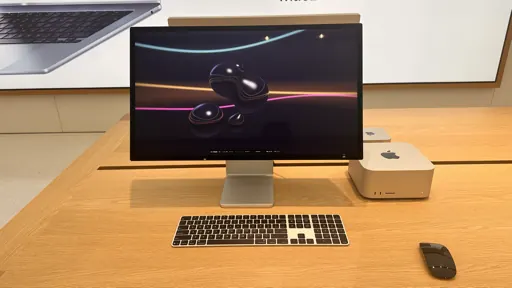
A store visit became a benchmark audit
We recorded six scores during the visit:
| Device | Field score | Benchmark version |
|---|---|---|
| iPad mini (A17 Pro) | 3,186 | 2.1.0 |
| iPhone 17e | 4,275 | 2.1.0 |
| iPhone 17 | 5,696 | 2.1.0 |
| iPhone Air | 5,856 | 2.1.0 |
| iPhone 17 Pro Max | 6,118 | 2.1.0 |
| Mac Studio (2025) | 11,040 | 2.1.0 |
These numbers are a historical field record, not a current buying ranking. Every score in the table was captured with benchmark 2.1.0, the version we were auditing in the store. After returning from Hong Kong, we upgraded the algorithm to 2.2.0. If you tested on 2.1.0, we strongly encourage you to run the performance test again: scores from different benchmark versions must never be compared, and a fresh 2.2.0 result is the one that belongs on today’s board.
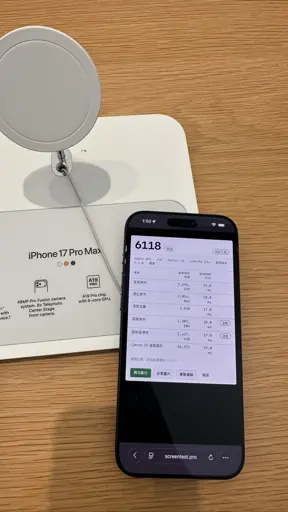
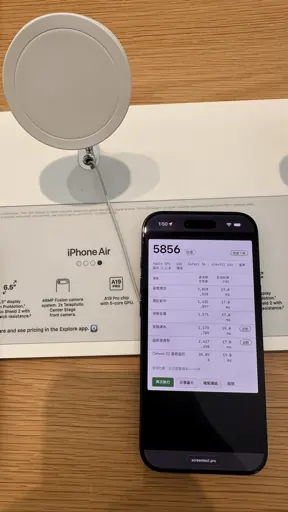
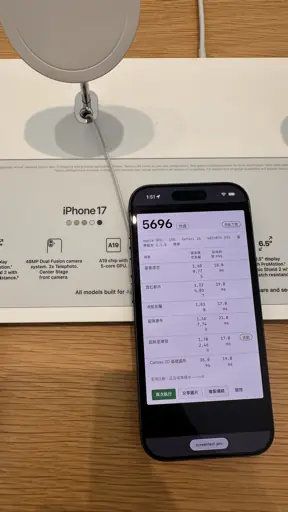
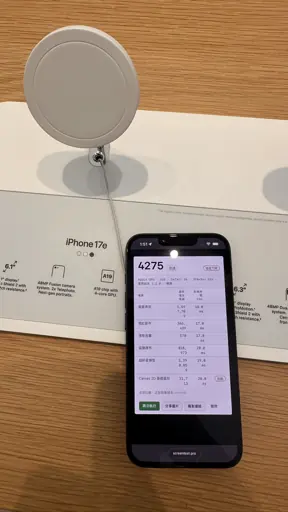
Several Apple Store team members stopped to watch the tests. They praised the site for feeling professional and said this kind of check was easy to recommend before someone bought a new device. That was generous, informal feedback from people in the store—not a formal endorsement by Apple—but it matched the behavior we want to encourage: inspect the exact screen you are considering, while you can still compare it with the alternatives beside it.
What the Apple Store test uncovered
The visit gave us something compliments could not: evidence that the benchmark was producing the wrong relationship between some high-end Apple devices. A group of very different GPUs landed within roughly nine percent of one another, and the strongest hardware could appear below a weaker device. We traced the collision to three separate causes.
First, the pass rule treated fixed-refresh and adaptive-refresh displays differently. A fixed 60 Hz panel can present a frame at one refresh interval or the next; an adaptive panel can return an in-between frame time directly. The old tolerance accidentally made one display path easier than the other. Benchmark 2.2.0 now runs a short pacing probe and applies a display-aware pass threshold while keeping the same 16.67 ms performance budget.
Second, one scene counted the temporary cost of reallocating its render target after a load change. Those transition frames were not the sustained workload we intended to measure. They are now discarded before statistics resume.
Third, fast hardware had outgrown parts of the scoring range. Two scenes could hit a flat score ceiling long before the hardware hit a real performance ceiling, compressing devices that should have separated. We raised the workload ladders, aligned each score cap with the scene’s measurable ceiling and re-centered the reference loads using uncensored hardware data.
The full engineering account is in the 2.8.0 changelog, and the current calculation is documented in How the score works. The lesson is broader than one fix: a benchmark earns trust by changing when field evidence proves that its assumptions are stale.
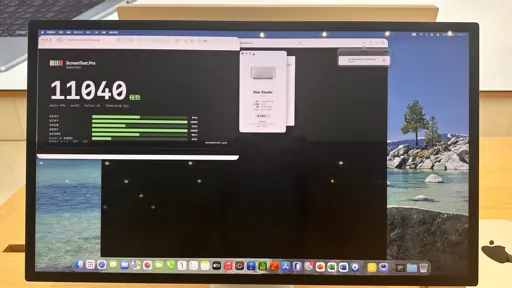
A benchmark should evolve with the hardware
We review incoming performance evidence and new hardware every day. When real devices reveal a ceiling, a bias or an outdated reference point, the algorithm is not treated as untouchable. We investigate, document the reason and ship a versioned correction.
As of September 2, 2026, the current Screen Test Pro benchmark algorithm is 2.2.0. You can see that version on the home page and on every result sheet. You can also follow every public change in the changelog and inspect current aggregated results on the benchmark board.
There is an important discipline behind those updates: reference loads remain frozen within a benchmark version. If a workload, pass criterion or reference changes in a way that changes the meaning of a score, the benchmark version changes too, and the new board starts a separate comparison set. Continuous improvement should increase credibility, not silently move the goalposts.
That is why we want every reader with an older result to test again. Open the Standard performance test, confirm that the start card says v2.2.0, and create a new baseline for your device. The rerun both gives you the corrected score and helps the current benchmark board represent real hardware more accurately.
What a screen test can catch before you buy
A specification sheet describes a model. A screen test inspects the actual unit in front of you.
Touch response and missed areas
Open the touch-screen test and trace across the entire panel, especially the corners and edges. You are looking for delayed strokes, broken lines, dead zones and inconsistent multi-touch response. This is useful on a new phone or tablet and even more important when buying a used or refurbished device.
Dead, stuck and hot pixels
The dead-pixel test cycles full-screen solid colors so tiny defects stop hiding inside a photograph or app interface. White, black, red, green and blue backgrounds expose different subpixel failures. If you are checking a used screen, the used-screen inspection guide adds image retention, pressure marks and edge damage to the checklist.
Color, gradients and uniformity
Use the gradient test to look for banding, tint shifts and uneven transitions. The monitor calibration tool adds black level, white level, contrast and gamma patterns. These checks cannot replace a colorimeter, but they can quickly expose a panel that looks obviously different from the same model beside it.
Refresh rate and motion behavior
The refresh-rate test confirms what the browser is actually receiving. The ghosting test helps reveal trails, smearing and overdrive artifacts in motion. This matters because a device advertised at a high refresh rate may be running in a power-saving mode, or a monitor may be limited by its cable or port.
Browser performance under sustained load
The performance test ramps six visual scenes until each reaches its maximum stable load, then combines those measurements into a versioned score. It is a fast way to understand how the complete browser–operating system–GPU chain behaves on the device. It does not replace a native GPU laboratory, and our guide to what a browser benchmark can measure explains that boundary in detail.
How to compare devices fairly in a store
The best store comparison is simple and repeatable:
- Use the same browser family where possible, close heavy background apps and note whether each device is plugged in.
- Check that both results show the same benchmark version and the same Standard profile.
- Let a warm phone cool before the performance run. Sustained GPU work creates heat, and thermal throttling is real information—but it should not be confused with a cold-run peak.
- Run the short visual checks first: resolution, touch, full-screen colors, gradients and motion.
- Save the result image or link, then repeat the same sequence on the next device.
That last step makes the method useful beyond one brand. Test the newest iPhone in an Apple Store, then run the same version on the Samsung phone next door. Keep the browser and conditions as close as practical, compare the subscores as well as the total, and treat the result as evidence about the whole browsing stack—not a claim that one chip is universally faster in every app.
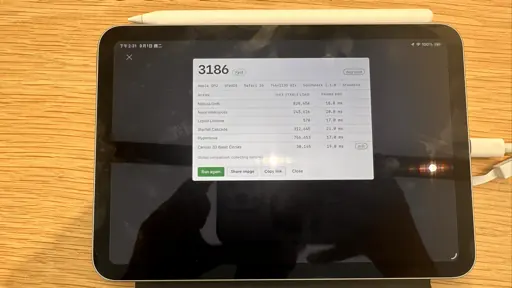
Five minutes now can prevent years of annoyance
A bad pixel, unreliable touch zone or disappointing panel is easiest to deal with before payment. Even when a device is flawless, testing gives you a clearer reason for choosing one model over another than a spec-sheet comparison alone.
Start with the complete monitor test on a laptop or desktop, or use the focused mobile screen test on a phone. Then run the current performance benchmark if you want a comparable measure of browser performance. No installation or account is required, and the tests run on the device in front of you.
Before you buy the screen you may look at for the next several years, take five minutes to test it. If you rerun a device on benchmark 2.2.0, please leave a comment below with the model, browser and result. Questions, comparisons and field reports are all welcome—we read them, and they are often where the next improvement begins.